Now that I have converted my old video files into Flash Video files, what do I need to do to add them in my website? I wondered.
The answer: You will need to have the Flash swf component that will play your FLV video files which will be embeded in your web page. And install or save it in your website. And add addtional javascript or embed elements in your webpage. See Wikipedia page for more information.
So I spent some time googling and tried to find free or open source (So I can probably improve it after I learn Flash 🙂 ) FLV flash player. In this Wikipedia Flash Video page, there are several players listed.
- Web-Anatomy FLV Player : for Web, but Free only for Non-Commercial
- Applian FLV Player : This is Desktop FLV player which we don’t need
- Martijn DeVisser’s FLV Player : Also desktop player
- Sonettic Cinema FLV Player : It has a free version . Doesn’t say anything about non-commercial , so I guess I can use it, but it says something about the latest Flash Player is required to play it. Hmm.
- Wimpy Desktop FLV Player : Desktop player
- Flowplayer embeddable video player : This is for web.
- OS FLV – the Open Source, embeddable FLV player : This is for web, too
- Moyea Desktop Flash Player : Desktop Player
- nFLV Player – Able to play unrewindable/unforwardable .flv videos : Desktop player
- SWF & FLV Player (Mac OS-X) : Desktop for Mac OS-X
Also another player , JW Media Player is well-known but it is also free only for non-commercial. According to the website, you should buy commercial liscence if you have ads in your website such as Adsense or display banners. So basically this is not a solution for me at least.
And I do not like such limitation. Free for all cases is what I would really want. So I choose FlowPlayer and OS FLV as they are under GPL licenses.
Flow Player
Flow Player is in fact very mature and has very nice advanced features that other players do not have – such as playing muliple flv vides at once and javascript functions to control the player functions. I haven’t had the time to check out the advanced features yet, but I will write another article on that when I have the chance.
1. Download the zip file from here and unzip and upload the files into your website.
2. I have uploaded directly into the HTML document root path so the URL of the path is http://www.neox.net/flowplayer.
3. Now open the exmple file by accessing http://yourwebsite.com/flowplayer/html/example.html. And view the pages HTML source.
I have restructured the code layout so only absolutely need parts are showing below example.
<script type="text/javascript" src="http://www.neox.net/flowplayer/html/flashembed.min.js"></script>

<div id="flow_example"></div>
<script type="text/javascript">
//window.onload = function() {
    flashembed("flow_example",
      {
         src:'http://www.neox.net/flowplayer/FlowPlayerDark.swf',
                        width: 400,
                        height: 300
      },
      {config: {
                        videoFile: 'http://www.neox.net/video/babyhana.flv',
                        autoPlay: false<|$styles>|>,
                        initialScale: 'fit',
                        loop: false<|$styles>|>,
                        autoRewind: true<|$styles>|>,
                        autoBuffering: true<|$styles>|>
      }}
   );
//}
</script>
4. As you can see, it is pretty straight forward. You will need to change javascript source file path, flash player path and videoFile path. Additionally, you can play around with various option such width and height of the player.
Some more explanation;
- autoPlay: Setting true will make the player start to play the movie as soon as the web page is loaded.
- loop: Settig true will make the player replay the movie continuously
- autoRewind: Move the position back to start after the view
- autoBuffering: Setting true will preload the movie file.
If you are concerned with your website’s bandwidth usage , you should not set autoPlay to true. By setting autoPlay to true, whenever a user visits your webpage, the movie file is automatically downloaded to the client’s computer consuming the bandwidth. Also, you should set autoBuffering to false since it automatically downloads the file to client’ computer too.
But if you want the users to see the still image of the movie file but dont’ want the client to preload or pre-down the whole movie file, there is another option splashImageFile. You can define URL or absolute or relative path of a JPEG image file. (The website says only JPEG is supported) and when defined only the image file will be downloaded and shown in the player.
See below for the usage example.
  {config: {
                        videoFile: 'http://yourwebsite/video/test.flv',
                        autoPlay: false,
                        initialScale: 'fit',
                        loop: false,
                        autoRewind: true,
                        autoBuffering: true,
                        splashImageFile: 'http://yourwebsite.com/image.jpg'

      }}
If you want simpler way to generate the code, you can use below simple code generator for your conveniences. You can just copy and paste output from the textarea into your html.
FlowPlayer HTML codes generator 😉
OS FLV player
Now, OS FLV is another promissing player. It is under GPL lisence and open source. I admit that this one is not stable as FlowPlayer but it is nice to try other player.
1. Download the zip file from here and unzip and upload the files into your website.
2. I have changed the default folder name ‘player2’ to ‘flv’ to easy recognize what it is. I uploaded directly into the HTML document root path so the URL of the path is http://www.neox.net/flv.
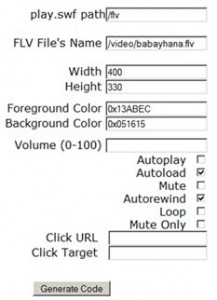 3. Now open the exmple file by accessing
 http://yourwebsite.com/flv/Firefox%20codegenerator.html. It is basically an embed code generator you can start to use it right away. This script only runs with Firefox browser.
But this generator has a little problem. You can not use this script if the calling webpage does not reside within the same folder where the SWF player is located. (For my example, ‘/flv’ folder)
So I have fixed and added a new input field to define the OS FLV folder. So the embed output can be used with any webpages.
- Width and Height: width and height of the player
- Autoplay: will play the video automatically when the webpage is loaded
- Autoload: will preload the flv file
- Autorewind: will rewind the video and put the position back to start
- Loop: will continuously replay
As I mentioned on the bandwidth usage, if you are concerned on too much bandwidth usage, you should not check the autoplay and autoload option. But disable these features make the player’s initial screen empty black. If you would like to show the still image of the video (just like YouTube) , you will need to enable autoload. But it will make the client to download the full file which will consume the bandwidth. There is no other options to resolve this issue at this moment.
See below for the example embed code output.
<script src='/flv/AC_RunActiveContent.js' language='javascript'></script>
<script language='javascript'>
 AC_FL_RunContent('codebase', 'http://download.macromedia.com/pub/shockwave/cabs/flash/swflash.cab#version=9,0,0,0',
 	'width', '400', 'height', '300', 'src', ((!DetectFlashVer(9, 0, 0) && DetectFlashVer(8, 0, 0)) ? '/flv/player8' : '/flv/player'),
 	'pluginspage', 'http://www.macromedia.com/go/getflashplayer', 'id', 'flvPlayer', 'allowFullScreen', 'true',
 	'movie', ((!DetectFlashVer(9, 0, 0) && DetectFlashVer(8, 0, 0)) ? '/flv/player8' : '/flv/player'), 'FlashVars',
 	'movie=/video/babyhana.flv&bgcolor=0x051615&fgcolor=0x13ABEC&volume=&autoload=off&autorewind=on&clickurl=&clicktarget=');
</script>
<noscript>
 <object width='400' height='300' id='flvPlayer'>
  <param name<|$styles>|>='allowFullScreen' value='true'>
  <param name<|$styles>|>='movie' value='/flv/player.swf?movie=/video/babayhana.flv&bgcolor=0x051615&fgcolor=0x13ABEC&volume=&autoload=on&autorewind=on&clickurl=&clicktarget='>
  <embed src='/flv/player.swf?movie=/video/babayhana.flv&bgcolor=0x051615&fgcolor=0x13ABEC&volume=&autoload=on&autorewind=on&clickurl=&clicktarget=' width='400' height='300' allowFullScreen='true' type='application/x-shockwave-flash'>
 </object>
</noscript>
Conclusion
There are many Flash embedable player out there, but I introduced only the GPL license and opensource ones for you can use for any purpose non-commercial or commercial. Flowplayer is stable and feature rich player and OSFLV player is simple and comes with an easy-to-use embed code generator. But you can also create the embed codes for Flowplayer using my simple form above, too.
Personally I like FlowPlayer and will spend some more time finding out the advanced features.
Have a nice day.
Previous: How to add Streaming Video in your website 1 – create a Flash Video FLV
Here’s another FLV Player under GPL:
http://www.video-flash.de/flv-flash-fullscreen-video-player/
Thx a lot for this blog. I have been looking for the free flv player for commercial use but couldn’t find. Your blog sure have helped me a lot. Thx again. 🙂
I’m having a problem with OS Flv player. Can you please help me out. When I play the movie the slider just disappears & once the movie starts playing I can’t go back. Hence there’s no slider as soon as I click on play but b4 playing it shows a slider.
http://3gwrestling.com/index.php?option=com_content&view=section&layout=blog&id=9&Itemid=57
You can see here what I’m talking about. I cant see a particular part of the video I want. If I click on the buffering bar. It just goes to the beginning of the video. Help me out please. Thanks in advance. 🙂
I do not know why that’s happening.Usually once the web browser fully download the movie, the user will be able to move cursor freely. Also, you need to use streaming server or other PHP streaming solution in order to play back any part without complete donwloading of the flv file. Using just Player with the static flv file won’t let user to move the cursor freely. I have not quite gather information on streaming solution, yet. But I will try to come up with a blog soon.
Hey, Thanks a lot. Yes you were right when the video fully buffered it gave the option to move cursor around any part of the video. I don’t really use any streaming server or any php streaming. Actually I’m not quite aware of it. So I’m gonna follow your next blog about streaming for sure. Can’t wait for it. Thanks once again.
I would like to embed a FLV player into my web site to play the samples. I can convert the videos to FLV, however I do not know HTML programing. I used Web Easy Pro 7 to create the site. Could you give me some directions. The FLV files are much smaller than the way I am doing it now. Thanks for any help. Chuck
Gr8 blog, Good job,
I have become a fan of yours now 🙂 , It is really informative, a step by step guide.
Thnx again .
Cheers
Siva G
Thank you for the comment Siva. I tried to provide as much information as possible.