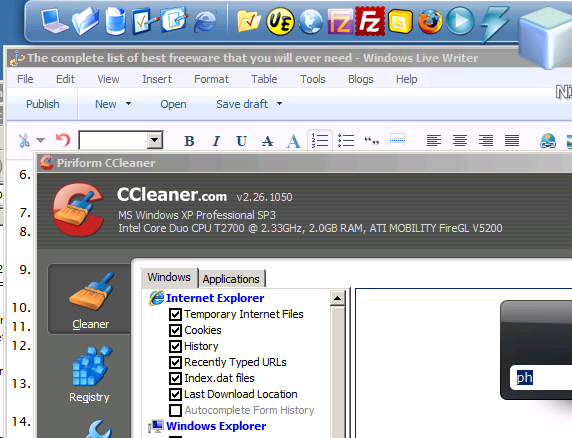
It has been awhile since I posted the last article. I was busy setting up my new website http://wpmarketing.org . Anyway, I stumbled this introduction page of free desktop application from lifehacker , my favorite DIY site. I am using many of the list, and love to tell which ones I am using. I will mark them with Red Color.
61 Free Desktop Applications, Webapps, and Tools We’re Most Thankful For
- Firefox (see also: Power User’s Guide to Firefox 3, Top 10 Firefox 3.5 Features)
- VLC (see also: Master Your Digital Media with VLC, VLC Hits 1.0 with Better Playback and File Support)
- CCleaner (see also: Five Best Windows Maintenance Tools)
- Dropbox (see also: Use Dropbox for More Than Just File Syncing, Sync Files and Folders Outside Your My Dropbox Folder)
- 7-Zip (see also: Five Best File Compression Tools)
- OpenOffice.org (see also: OpenOffice.org 3.1’s Usability Tweaks, OpenOffice.org Screenshots Preview a Ribbon-Like Toolbar)
- Google Chrome (see also: The Power User’s Guide to Google Chrome, 2009 Edition)
- µTorrent (see also: Tweak uTorrent’s Settings for Faster Downloads, Five Best BitTorrent Applications)
- Notepad++ (see also: Five Best Text Editors, AutoSave Adds Reassurance to Notepad++ Editing)
- Gmail (see also: Our full Gmail coverage)
- GIMP (see also: Gimp 2.7 Beta Improves Text Editing, Streamlines Saving)
- Paint.NET (see also: Paint.NET Releases Big Update, Still a Killer Photoshop Alternative, Paint.NET Plugin Lets You Open Photoshop Files)
- Microsoft Security Essentials (see also: Microsoft Security Essentials Free Antivirus App Leaves Beta, Stop Paying for Windows Security; Microsoft’s Security Tools Are Good Enough)
- Revo Uninstaller (see also: Lifehacker Pack 2009: Our List of Essential Free Windows Downloads)
- Evernote (see also: Evernote 3.5 Beta Brings Tons of Tiny Fixes to Windows, Expand Your Brain with Evernote)
- Thunderbird (see also: Thunderbird 3 Release Candidate Available for Download)
- Audacity (see also: Geek to Live: Make a ringtone from any MP3)
- ImgBurn (see also: Turn Your PC into a DVD Ripping Monster, Five Best CD and DVD Burning Tools)
- Picasa (see also: Picasa 3.5 Organizes Your Photos with Facial Recognition)
- Skype (see also: Our full Skype coverage)
- Pidgin (see also: Ten Must-Have Plug-ins to Power Up Pidgin, Five Best Instant Messengers)
- Ubuntu (see also: First Look at Ubuntu 9.10 Karmic Koala, Dual-Boot Windows 7 and Ubuntu in Perfect Harmony)
- iTunes (see also: iTunes 9 Improves Syncing, Network Sharing, More)
- foobar2000 (see also: Screenshot Tour: The beautiful and varied world of foobar2000, Hack Attack: Roll your own killer audio player with foobar2000)
- Foxit Reader (see also: Five Best PDF Readers, Lifehacker Pack 2009: Our List of Essential Free Windows Downloads)
- FileZilla (see also: Five Best FTP Clients, Build a Home FTP Server with FileZilla)
- VirtualBox (see also: The Beginner’s Guide to Creating Virtual Machines with VirtualBox)
- TrueCrypt (see also: Geek to Live: Encrypt your data, Five Best Portable Applications)
- Avast! (see also: Five Best Antivirus Applications)
- Defraggler (see also: Five Best Disk Defragmenters)
- KeePass (see also: Eight Best KeePass Plug-Ins to Master Your Passwords, How to Use Dropbox as the Ultimate Password Syncer)
- Opera (see also: Opera 10.10 with Unite Media Server Released)
- AVG (see also: AVG 9 Free Now Available for Download)
- Digsby (see also: Five Best Instant Messengers, Digsby Sees the Light, Removes (Some) Bundled Crapware)
- Google Reader (see also: Our full Google Reader coverage)
- Winamp (see also: Win7shell Adds Windows 7 Jump List Support to Winamp)
- Google Earth (see also: Google Earth 5.1 Speeds Up Your World Browsing)
- TeraCopy (see also: Five Best Alternative File Copiers)
- Launchy (see also: Our full Launchy coverage)
- Transmission (see also: Lifehacker Pack 2009: Our List of Essential Free Mac Downloads)
- Eclipse IDE
- SpyBot Search & Destroy (see also: Five Best Malware Removal Tools)
- Adium (see also: Adium Updates with Security Fixes, Better Facebook Integration)
- PuTTY (see also: Add Tabs to PuTTY with PuTTY Connection Manager)
- Songbird (see also: Songbird 1.0 Release Official, Fixes Bugs, Plays iTunes Purchases, Killer Add-ons Make Songbird So Much Better)
- Sumatra PDF (see also: Sumatra 1.0 is a Blazing Fast Replacement for Adobe Reader)
- XBMC (see also: Build a Silent, Standalone XBMC Media Center On the Cheap, Customize XBMC with These Five Awesome Skins, Turbo Charge Your New XBMC Installation)
- Blender (see also: Learn Blender with free e-book)
- CDBurnerXP (see also: Five Best CD and DVD Burning Tools)
- Everything (see also: Everything Finds Windows Files As You Type, Top 10 Tiny & Awesome Windows Utilities)
- HandBrake (see also: HandBrake Updates to 0.9.4 with Over 1,000 Changes, 64-Bit Support)
- Rainmeter (see also: Rainmeter 1.0 Brings the Enigma Desktop to Everyone)
- AutoHotkey (see also: Turn Any Action into a Keyboard Shortcut, Hack Attack: Knock down repetitive email with AutoHotKey)
- Google Calendar (see also: Our full Google Calendar coverage)
- MediaMonkey (see also: MediaMonkey 3.2 Syncs with More Devices, Adds Auto Folder Watching)
- Quicksilver (see also: A beginner’s guide to Quicksilver)
- WinSCP
- Google Voice (see also: Make Unlimited Free Calls on Your Cellphone with Google Voice, How to Ease Your Transition to Google Voice)
- Boxee (see also: Build a Cheap But Powerful Boxee Media Center, Boxee to Launch Beta with Loads of New Features)
- AdBlock Plus (see also: Top 10 Must-Have Firefox Extensions, 2009 Edition)
- Media Player Classic (see also: Five Best Video Players)
Okay, I only use 21 programs out of 61 listed. But here are some of terrific freeware that I am using, but not mentioned on the list.
- RocketDock – Application Launcher just like Apple OS X. The dock can be set to hide and to appear with mouse moves.
- Any Video Converter – I have reviewed several free video converters few months ago. This was the best and quick and easiest converter out there among the free ones. Check the download menu and go to the bottom to get the free version.
- QuotePad – This is sticky notepad with alert function. The best feature I like is that it can dock to the side of the screen and hide and appear whenever mouse moves over it! It saves the desktop space.
- Windows Live Writer – Must have tool for any blogger. WordPress has very good interface for writing articles, but sometimes it is awkward to attach images or formatting article layout. But Windows Live Writer comes to the rescue! It supports various blogging platform including WordPress. You are able to set Category, Tags, Publish Date. And provides intuitive interface just like any other desktop document word processing software. You can easily attach images by just copy and paste screen capture images.
- Recuva – To recover deleted files or to completely delete them.
- PhotoScape – Simple and Quick image editing or manipulation tool. I know Paint.NET is very good one, but it’s just too heavy to perform simple editing. But PhotoScape is lighter and I prefer to use it most of the time. I rarely use Photoshop after I found PhotoScape.
- Ashampoo Burning Studio Free – Full featured CD DVD Blu-ray discs burning tool. I am not sure how this commercial grade software can be free, but it is truly free. It do have ImgBurn installed, but I think I never used it.
That’s about it for now. I will update the list if I find good ones worth to mention.
Thank you and enjoy!
