UPSRATE RSI STOCK BLOG FREEWARE DVD-CD PuTTY

April 19, 2007

Flash Tag Cloud

Filed under: Uncategorized — HanaDaddy @ 10:39 pm

Now here is the FLASH in action. If you do not see anything below, your flash player is not version 9.

This is a test for the Flash Tag Cloud WordPress Plugin.

Basically, tags are randomly arranged and fly around in this flash when you move your move over it. It is a nice eye-candy. But you need to click on the flash to activate it when you view with the IE.

There is an option page in the admin interface that you can change the behavior of the flying text.

Plugin Website: http://meiclamo.net/wordpress/wordpress-plugin-flash-tag-cloud

Requirements are

  1. Flash 9 is required.
  2. You must be using UTW (Ultimate Tag Warrior Plugin) as tagging plugin.

Here is the captured image.
Flash Tag Cloud

April 18, 2007

PuTTY: Exporting Profile Data for migration

Filed under: Software — HanaDaddy @ 10:50 pm

I was using the PuTTY with several profiles stored and was happy with it. One day, I got this new labtop and decided to migrate whole desktop system to this new labtop.

But for PuTTY,there was no menu for the profile export. So I spent some time to find out how to do it.

The solution was posted in the FAQ of the PuTTY Homepage.

A.5.2 Where does PuTTY store its data?

On Windows, PuTTY stores most of its data (saved sessions, SSH host keys) in the Registry. The precise location is

HKEY_CURRENT_USER\Software\SimonTatham\PuTTY

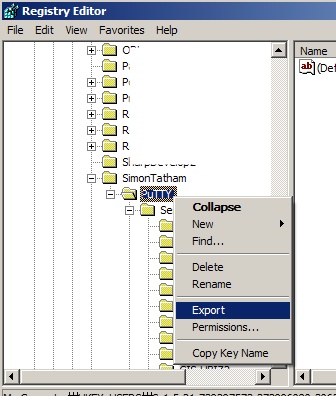
Alright, you can extract Registry data by using regedit. Open regedit and browse the path in the left treeview upto HKEY_CURRENT_USER\Software\SimonTatham\PuTTY

Once you highlight the PuTTY node, click right mouse button and select the ‘Export’ Menu. A new Save Dialog window will be shown and you will be able to save the information into a file.
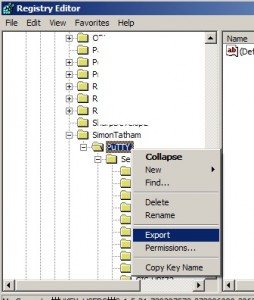
Export PuTTY Profile data from the Registry

After you copy the data file (*.reg) to the new computer, you can register it to registry by simply double clicking on the file.

Updated : 20070629
Here is a better way to do it

Create a batch file that executes regedit.

regedit /ea putty.reg HKEY_CURRENT_USER\Software\SimonTatham\PuTTY

Run it by double clicking. Then you will get putty.reg.
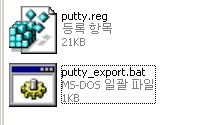
Then you can send it to your Gmail account and download the file from any other computer connected to the Internet and import it by double clicking again.

And here is the batch file if you are lazy enough to download one instead of creating one by yourself.
http://www.neox.net/w/wp-content/data/putty_export.bat

PuTTY : A Free Telnet/SSH Client

Filed under: Software — HanaDaddy @ 10:27 pm

They used to charge high prices for the commercial SSH client software.(SecureCRT is one of them) Then this free SSH client was released in the Internet. And we are able to enjoy secure shell environment for free! Thanks to Simon Tatham. Below is the excerpt from the PuTTY homepage.

PuTTY is a free implementation of Telnet and SSH for Win32 and Unix platforms, along with an xterm terminal emulator. It is written and maintained primarily by Simon Tatham.

If you are a developer or a system admin , you may access to the UNIX server using telnet application everyday. Telnet uses a simple raw data transmission without encryption , so if you use telnet over the public Internet, your authentication data(Password) may be captured and viewed by anyone with the right tool and the motivation. It is very vulnerable and not recommended.

SSH (Secure Shell) is similar to telnet but it is very secure. It encrypts the data before the transmission, so you can rest knowing that your password is safe with you.

PuTTY first screen

When you first run the application, you will see the screen looks like above image. You can right connect to the SSH server right away by typing in the IP or domain name of the host in the HOSTNAME field and press Enter key.

There are various options and settings that you can change by using the items in the left pane. (Windows Color, Font size)

There are few settings that you may want to change before starting a session.
1. Backspace Key: By default, Control-?(127) is the Backspace key, but you may need to set to Control-H.(It depends on the server’s setting).
Changing Backspace Key value

(more…)

April 15, 2007

Foxit PDF reader - Another free PDF reader

Filed under: Software — HanaDaddy @ 9:33 pm

Yes, Foxit PDF reader is a free PDF reader created by other company.

Actually I would not recommend if you just want to try a different PDF READER. Foxit is maybe a little faster than Acrobat, but its displayed quality is worse. Also , there are lots of flickering when you resize the window.

Then why am I writing about this software? Because it has great advantages over Acrobat Reader. You can write texts , mark Highlight and Underline, and add notes to the PDF file. Some simple graphical diagram tools are also supported. But special watermark texts will also be written at the top right hand corner of the document when it is saved.

I heard that many small sized companies use Foxit Reader for this function and because it is free.

Foxit Reader in Action

Microsoft Power Toys

Filed under: Software — HanaDaddy @ 5:58 pm

Well, these goodies do not come with the default Windows XP. They are created by the developers and they are free. That’s why there is no support from Microsoft for these products. By the way, according to the link, these will only work with Windows XP, not Vista.

There are several great useful utilities that can be downloaded and setup separately. I think some of them are very useful.

Here are the ones that I like

1. Tweak UI. As the name of the program explains, you can tweak many default properties of your Windows system. (Default user UI, Explorer Settings, Logon - Auto logon, Desktop Icons, Mouse Settings.) It is very useful.

Tweak UI

2. Alt-Tab Replacement.
It is a wonderful replacement of traditional ALT-TAB Taskswitcher, indeed. Small preview image appears in the left side when you move onto the next application.The background color is depend on the Desktop Color defined in the Display option of the Control panel.
TaskSwitch in Action
Download TaskswitchPowertoySetup.exe

Some more of the interests are

  • ClearType Tuner : When installed, it will help to display the fonts in more distinct and clear way. It is a great help for the people who use labtop with small screens.
  • Virtual Desktop Manager: When you have at least 10 or more applications running at the same time, you do feel that your screen is very small and tight and hoping for a larger monitor. But you can solve the limited desktop space by using the Virtual Desktop Manager. You can have several desktops and you can switch each desktop easily. Later in the upcoming blog entry, I will discuss more about the other Virtual Desktop applications that I have used. PowerToy’s Virtual Desktop Manager is nice, but not the best.
  • Image Resizer: This is a very useful and simple utility to resize images that you can access it through the shortcut resize menu in the right mouse click popup menu.

So please go ahead and try for yourself!

Next Page »
 

46 queries. 2.248 seconds. Powered by WordPress