UPSRATE RSI STOCK BLOG FREEWARE DVD-CD PuTTY

April 23, 2008

PuTTY Auto Login Macro using AutoHotKey

Filed under: Software — HanaDaddy @ 12:26 pm

PuTTY is the best SSH client and it’s free. But it lacks of this little function that I really want - Automatic login.

So I have searched many Google pages and found this PuTTY Connection Manager which I explained details in my previous post. It is a very good software.

But somehow I wanted the auto login function without the extra programs. I wanted it to be done directly with PuTTY, not within the frame of PuTTY Connection Manager.

And I found this software called AutoHotKey (http://www.autohotkey.com/) which can automate keyboard and mouse actions. But I gave up to use it at that time because I was too lazy to read all the instructions and to come up with a script for the auto login.

But yesterday, I decided to take a look again and this time I successfully created the Auto Login script! To tell you the truth, it was not easy but it is worth it. I am proud of myself :)

So here is the script.

1
2
3
4
5
6
7
8
9
10
11
12
13
14
15
16
17
18
19
20
21
22
23
24
25
26
27
v_program=%A_ProgramFiles%\PuTTY\putty.exe -load putty_profile
v_userid=youruserid
v_passwd=yourpasswd
v_wait_userid=1000
v_wait_passwd=500
 
;-------------------------------------------------
; To make modifier keys to work properly (such as Shift)
SetKeyDelay, 0, 10
 
run, %v_program% , , , newpid
 
;you need to wait a little for the window to initialize
;sleep, 100
winwait, ahk_pid %newpid%
 
;wait for the login prompt to appear
sleep, %v_wait_userid%
ControlSend, , %v_userid%{enter}, ahk_pid %newpid%
 
sleep, %v_wait_passwd%
ControlSend, , %v_passwd%{enter}, ahk_pid %newpid%
 
;create unique title so you won't be lost 
WinGetTitle, v_title, ahk_pid %newpid%
v_newtitle=%v_title% - %newpid%
WinSetTitle, ahk_pid %newpid%,,%v_newtitle%

If you want to try this yourself, you will need to change some information.

  1. Install AutoHotKey software.
  2. Create any file name with extension .ahk. For example ’ssh.ahk’ would be fine.
  3. Copy & paste above code into the file. But need to change the values.
    v_program: PuTTY location with the -load option and connection profile name
    v_userid: userid
    v_passwd: passwd
    v_wait_userid : msec to wait before sending userid
    v_wait_passwd : msec to wait before sending passwd
  4. Save it and double click on the file to execute it. And watch the PuTTY logging in the server automagically!

In fact, you can easily add additional commands at the end of the script to execute further commands.

Below is an example.

1
2
3
4
5
6
7
8
9
 
;maybe you want to wait some seconds while initial welcome screen appears. Let's say 2 seconds.
sleep, 2000 
 
;cd upload
ControlSend,,cd upload{enter} , ahk_pid %newpid%
 
;You can send the folder list to your email account.
ControlSend,,ls|mail -s "Daily File Listing for Upload" your@emailaccount.com{enter}, ahk_pid %newpid%

Note that there is a little issue that the password is saved as plain text. But I can live with it for now.

Here is my script in action.

Come visit again for more information on PuTTY.

April 22, 2008

PuTTY Backspace Error

Filed under: Software — HanaDaddy @ 6:59 pm

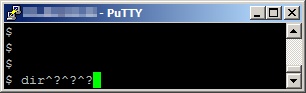
Backspace Error

This is a simple tip for PuTTY Configuration.
When you first use PuTTY , you will find the cases that BACKSPACE would not work and showing as strange sequence of ^ and question mark (^?^?^?) for some UNIX servers.

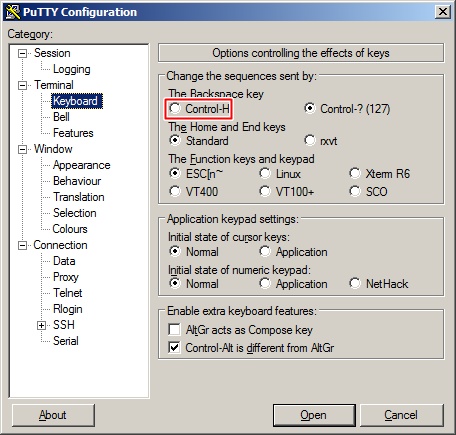
You can fix this problem just by changing the setting. Select Terminal Keyboard at the left TreeView control of the main PuTTY screen and select Control-H instead of default Control-?(127).
Also make sure you save the settings.

Terminal Keyboard Setting

Come visit again for more information on PuTTY Automation and Configuration Tips.

PuTTY Auto Login Macro - PuTTY Connection Manager

Filed under: Software — HanaDaddy @ 12:26 pm

Automatic Login or Login Macro function - Have you ever wanted to make the PuTTY login session automatic?

PuTTY is a great free telnet ssh client and I wouldn’t trade with any other client. But it lacks of this minor function that I really want - Automatic login.

Maybe the automatic login is not a big deal. You can just type in the userid and the password each time you log in to the development server . But if you do that regularly everyday, opening several times throughout the whole day, you would understand and agree with my little wish.

So I been looking for the solution , going through the every results of the Google search.

And here is the great helper application that can do automatic login macro!
PuTTY Connection Manager (http://puttycm.free.fr/) is the great .NET 2.0 application that can do the automatic login. Moreover, it supports tabbed windows just like the Firefox does it. Also it has quick connection menu bar that you just type in the address and connect which can be also useful.

Features

  • Tabs and dockable windows for PuTTY instances.
  • Able to load the profiles created from PuTTY.
  • Login macro - You can define Userid and Password and extra commands to execute after login.

Requirements

It can be little confusing when you first use the software and to use that Login Macro. By default the PuTTY CM shows existing PuTTY Session profiles in the TreeView located in the right pane. Don’t be fooled, you cannot set Login Macro with the existing PuTTY Session profiles. You will need to create a new database to do that.

Configuration Dialog

  1. Create a new database from File menu.
  2. You will see the newly created database icon in the right pane, above the PuTTY Session item. Copy the profile you want to set Login macro from the PuTTY Sessions and paste into the new database you just created. You can use traditional ctrl+C and ctrl+V shortcut.
  3. Right mouse click on the newly created item under the database and select Configuration.
  4. A new window dialog will show up with the same connection information as the original PuTTY profile. Check on the “Enable Login Macro Mode”.
  5. Select “Login Macro” in the left TreeView and you will be able to define the userid ,password, timeout seconds, and post login commands.
  6. After inputting data, click on the OK button and connect by double clicking the item.

Also, don’t forget to save your database settings, so you can use the settings later on.

Come visit again for more information on PuTTY Automation.

April 15, 2008

The Best Free CD, DVD, Blu-ray burning software - better than NERO

Filed under: Software — HanaDaddy @ 8:14 pm

Ashampoo Burning Studio Free
Download: download from download.com

I have been using various free CD & DVD burning softwares, but somehow yearned for more familiar and convenient interface just like NERO . And when I found out about this software, I knew that this was the one that I’ve been looking for a long time.

Ashampoo Burning Studio Free 6.61 is Free CD / DVD / Blu-ray Disc burning software. This is a free version according to Download.com (shown below image) but I was not able to find this product on Ashampoo.com website.

free

You can

  • Burn files into CD, DVD, Blu-ray disc
  • Backup files into mutiple CD, DVD, and Blu-ray
  • Burn music CD from music files such as mp3
  • Burn DVD , VCD, and SVCD movies
  • Copy disks
  • Create or burn disc from image file

Wow, that’s more than what I needed and with the familiar friendly easy-to-use screens!
My search for the free CD/DVD burning software has finally ended.

April 7, 2008

TClock - Today Dates showing in Windows Task Bar Clock

Filed under: Software — HanaDaddy @ 10:50 pm

Website: http://homepage1.nifty.com/kazubon/tclocklight/index.html
Direct download: http://homepage1.nifty.com/kazubon/tclocklight/tclocklight-040702-3.zip

At work, I have to write many emails and record work history. But frequently I forget the day’s date and have to move mouse over the task bar clock and wait for the tooltip to appear with the date or double click to access default windows calendar when I get impatient with the tooltip.

But here is my little freeware solution that helps me a lot! Now I know the date by just looking at the task bar clock. No more mouse hovering is needed!

Here is the original task bar clock

And this is the task bar after TClock was turned on with custom date & time format string.

Of course you can set the font type and size. In fact TClock has more functions that you can play with (Alarm clock and addtional options that can change Taskbar’s look) Below is the properties dialog screen shot.
TClock Property screen shot

Just unzip the downloaded file to a folder and drag the executable to your startup folder. So whenever the computer boots , TClock would show you the date information.

Next Page »
 

42 queries. 3.798 seconds. Powered by WordPress